 DocVeli
Start with what you have
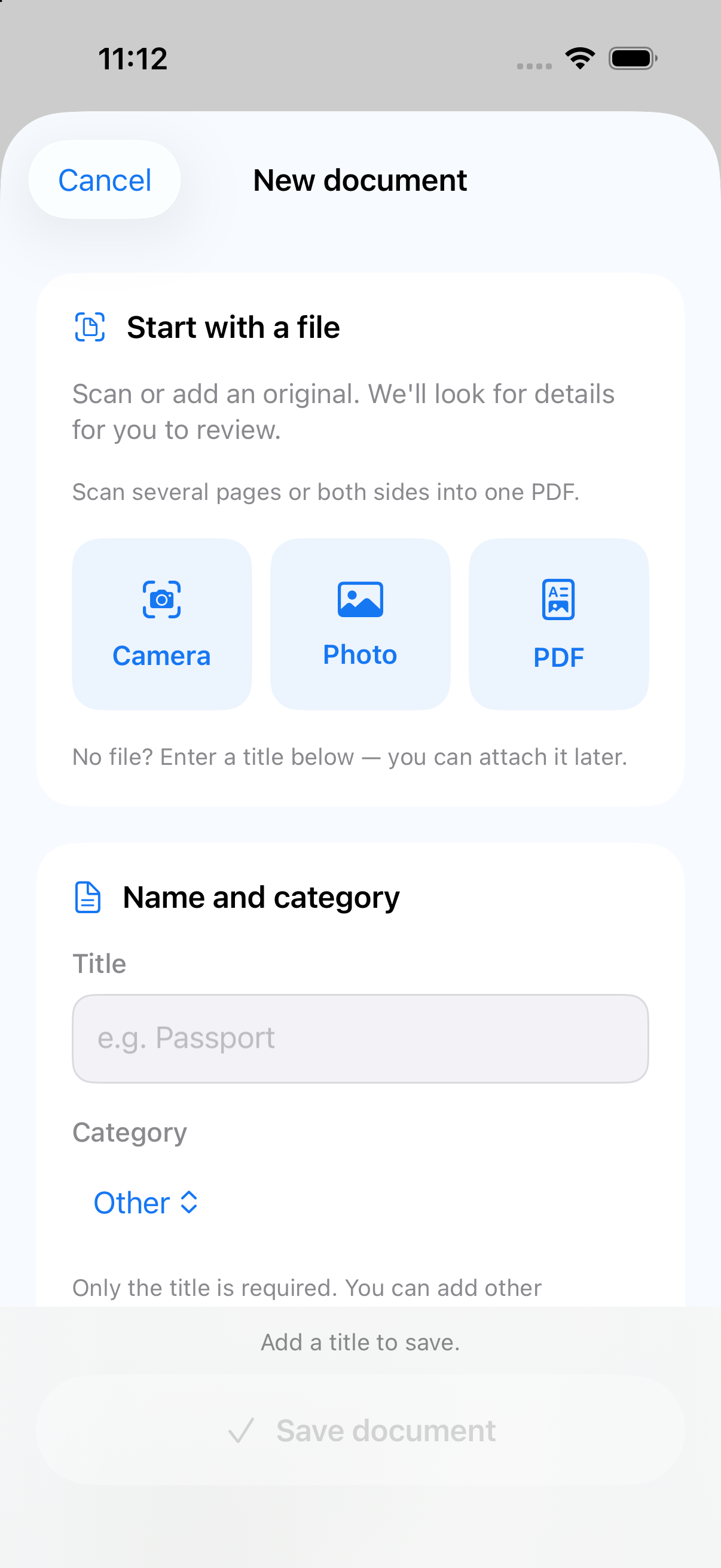
Scan several pages into one PDF, or import a photo or existing PDF. Keep the original file and its details together.
YOUR DOCUMENTS. YOUR PEACE OF MIND.
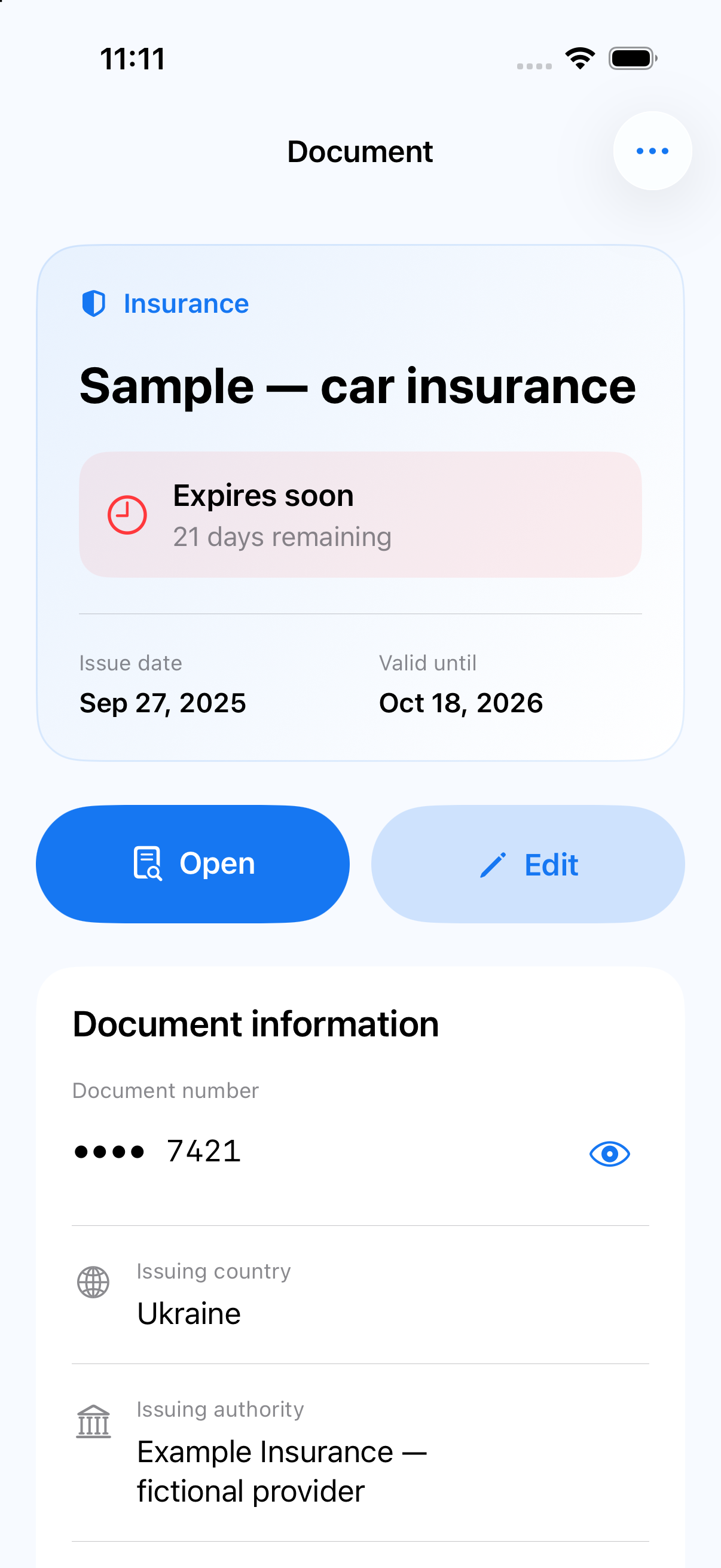
A passport, an insurance policy, a residence permit. Keep the files, find the details and stay aware of expiry dates — all in one iPhone app.
For iPhone · iOS 17 and later
LESS SEARCHING. MORE ORDER.
Scan several pages into one PDF, or import a photo or existing PDF. Keep the original file and its details together.
DocVeli suggests document fields right on your iPhone. Check the number, country and dates, then correct anything uncertain before saving.
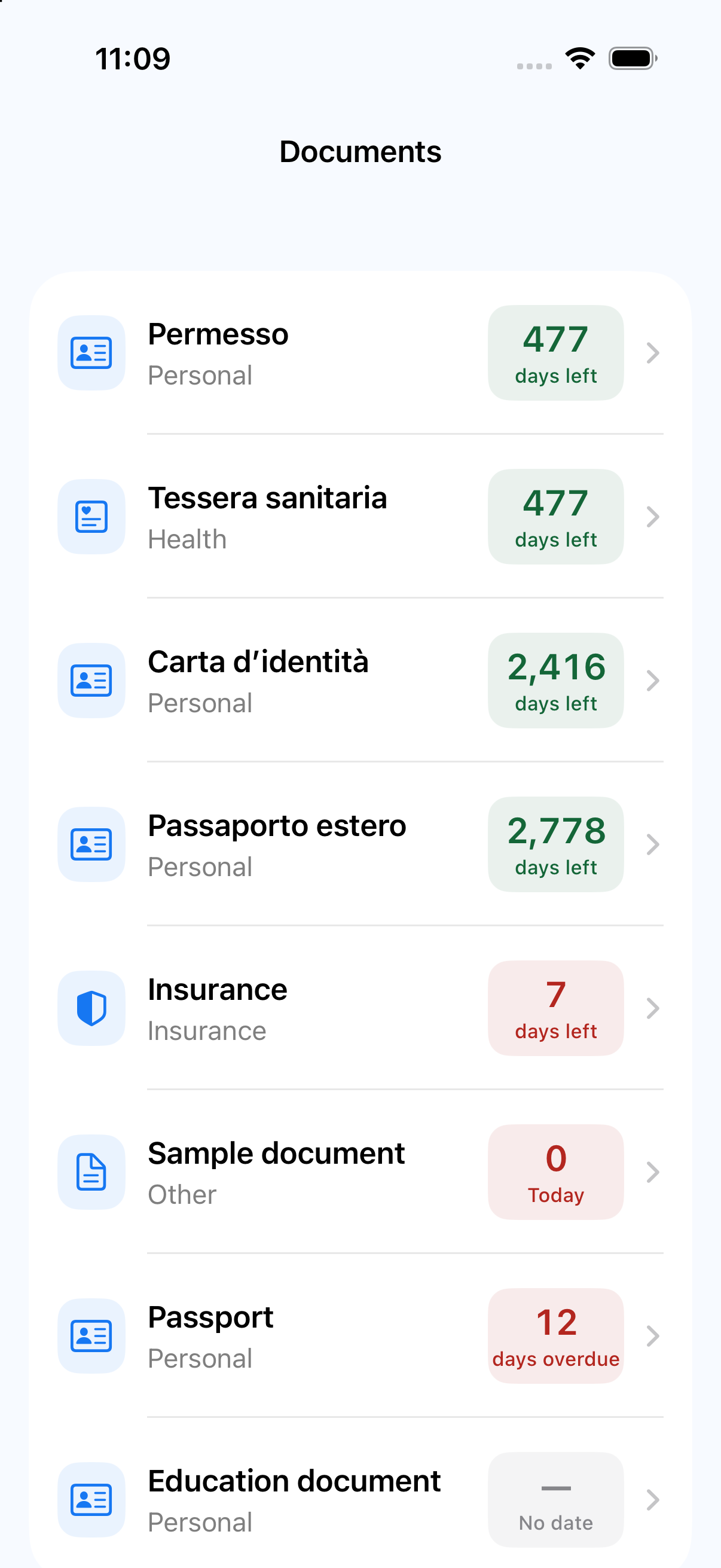
See which documents expire next. Allow notifications to receive local expiry reminders.
Add a replacement document and confirm your changes. Earlier details and files stay available in version history.
A LITTLE ORDER GOES A LONG WAY
Use the camera, a photo, a PDF or manual entry. Start with the file you already have.
Recognition helps fill in the fields. You make the final decision about what to save.
Search, categories and filters make it easy to get back to the right document.
PRIVACY, IN EVERYDAY TERMS
Recognition happens on your device. Photos, PDFs and recognized text are not sent to a remote AI service.
App lock protects access to the interface. Separate encryption applies to exported backups.
How your data is handledA FEW ANSWERS
No. The current version stores documents locally on your iPhone. There are no DocVeli accounts or automatic cloud sync.
Yes. Recognition runs on your device. If the original is held by a cloud provider in Files, you may need to download it first.
Results depend on image quality, language and document layout. Always review suggested values, especially numbers and dates.
Open backup and restore in Settings, choose a password and select where to save the file. You need that password to restore it; backup passwords cannot be reset.
DocVeli is preparing for release. An App Store link will appear here after launch. You can contact support with any questions.
Get help with documents, recognition and backups.
Visit support